greenshot for this computer
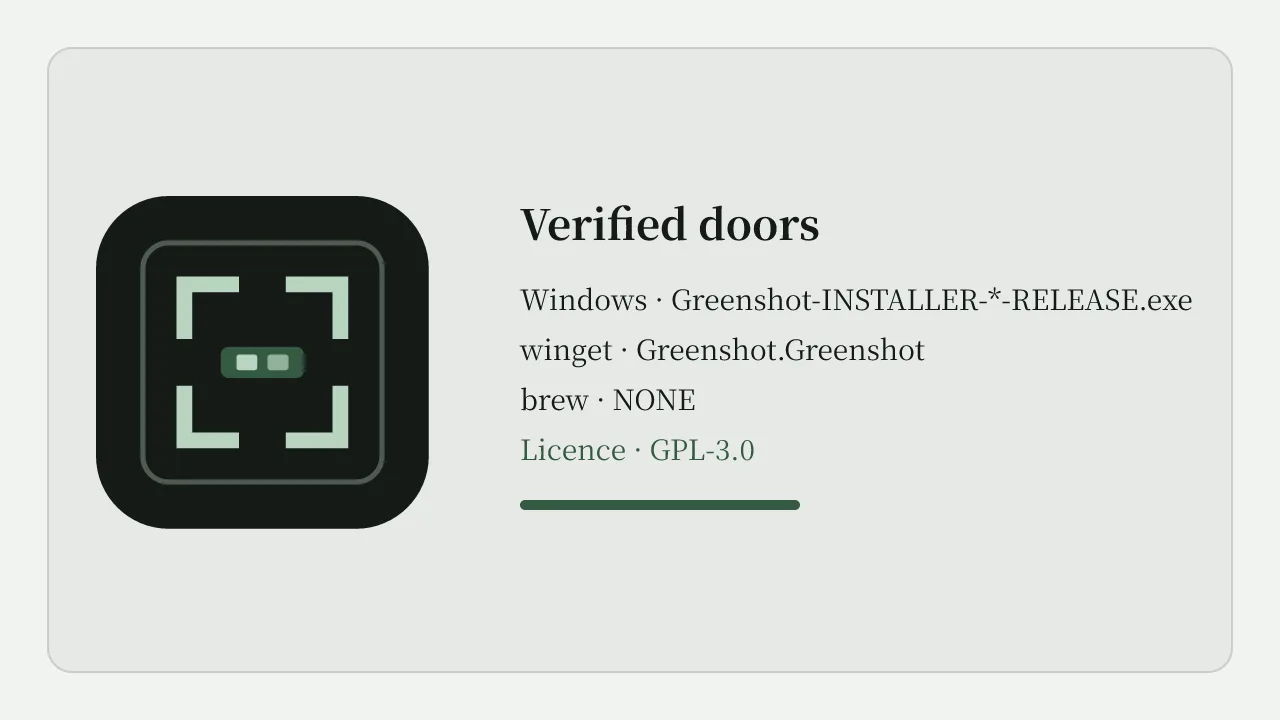
Setting up this tool on this computer means picking one stranger-safe door, finishing Setup, and proving a region capture before you trust hotkeys for real tickets. Windows is the supported path. macOS and Linux have no official RELEASE binaries on the tags this guide verifies.
Pick one door before you click
Use winget when App Installer is present. Use the Windows RELEASE.exe from GitHub Releases when package managers are blocked. Use the portable RELEASE.zip only when Setup cannot run. Write the choice on the machine card so next month’s update does not invent a second mirror for this screenshot tool.
winget install -e --id Greenshot.GreenshotFinish Setup without drama
- Approve UAC. The installer is Inno Setup per winget YAML.
- Complete the wizard. Keep the tray icon enabled so this tool stays reachable.
- Open Preferences. Set one capture hotkey you can remember on this desk.
- Choose clipboard or folder. Pick one default destination for the first hour.
- Prove a region capture. Save one PNG before you change plugins.
First-hour checklist
Spend the first hour proving capture with this tool, not collecting every destination. Test region capture, window capture, and fullscreen once each. Confirm the editor opens when you expect it. Related: installed, first run, hotkeys.
If PrintScreen is already claimed by ShareX or another tool, free that hotkey before you blame this tool.
Where files land
Default save folders vary by Preferences. Write the path on the card when you change it. Shared desks should avoid saving private screenshots to a public Desktop folder. Portable installs keep binaries beside the zip extract path; remember that updates are manual for that door.
Update and uninstall on this PC
Return to the same Releases URL or run winget upgrade. Uninstall from Windows Settings → Apps when the machine leaves the pool. Clear screenshot folders according to retention rules after install is removed.
Related: download safely, update and uninstall, greenshot home.
When this computer is a lab image
Freeze the image only after a reboot with the tray icon visible. Prefer the newest non-prerelease RELEASE.exe. Keep brew NONE on the printed card. Skip UNSTABLE builds even when they appear first on the Releases list for this screenshot tool.
- Pin the winget id the verified winget package id
- Pin the RELEASE.exe filename
- Prove capture after every reimage
- Document which Windows user owns Preferences
Travel laptops should carry the same notes on paper when Store access is flaky. Substitutes can then recreate this tool without guessing under pressure.
Compare rivals only after the local prove step succeeds: vs Snipping Tool, switch from ShareX. Do not mix installer doors across tools on the same ticket.
Shutter Quill maps doors; it Prefer official Releases every time someone asks for a faster this tool link on this computer.
Support notes that age well
Helpdesks move faster when every ticket names the installer door and the Windows build together. Vague reports that only say capture failed waste a day. Ask for the RELEASE.exe filename or winget id the verified winget package id, the approximate install date, and whether hotkeys changed during the complaint.
Trainers rehearse a prove-one-capture step before demos. Travel kits carry the same Releases URL on paper when Store access is flaky. Shared apartments document which OS user owns the tray session so preferences do not collide overnight.
- Keep a spare USB with the current RELEASE.exe for rooms without winget.
- Skip UNSTABLE and UNSIGNED assets on golden images.
- Keep brew NONE visible whenever Mac volunteers ask about this screenshot tool.
- Uninstall adware wrappers before you blame hotkeys or destinations.
When a machine retires, remove this tool from Settings → Apps and clear screenshot folders according to retention rules. Prefer the newest non-prerelease tag that publishes the Windows RELEASE.exe. That habit keeps imaging season calm.
Internal runbooks should quote the winget command verbatim and the Releases URL without marketing adjectives. Staff skim under stress. A short checklist with five boxes outperforms a long essay nobody finishes when this tool is the desk standard.
Related reading on this cluster: releases, GitHub, download safely, guides, greenshot home.
Extra imaging notes for shared desks
Print the Releases URL beside the winget package id on one card. After every reimage, install once, prove one region capture, and write the tag name. Substitutes move faster when the card already names the doors without marketing adjectives.
Travel kits can carry the Windows RELEASE.exe on trusted USB when App Installer is missing. Prefer returning to the same door instead of inventing a new mirror during a SmartScreen scare. Keep UNSTABLE builds out of the offline cache for this screenshot tool.
- Quote the verified winget package id when App Installer is allowed.
- Quote the Windows RELEASE.exe when Setup is manual.
- Keep brew NONE visible for Mac questions.
- Uninstall adware wrappers before you blame hotkeys.
When a machine retires, uninstall the client and clear screenshot folders according to retention rules. Prefer the newest non-prerelease tag that publishes the Windows RELEASE.exe. That rhythm keeps support queues short across a semester.